 Virtual tours for remarkable stays
StayPano · Insights & guides
How to get your 360 tour on Google Maps
How to put 360 photos on Google Maps: publishing via Google Maps and Street View Studio, and how Maps photos differ from a full 360 tour.
How to get your 360 tour on Google Maps
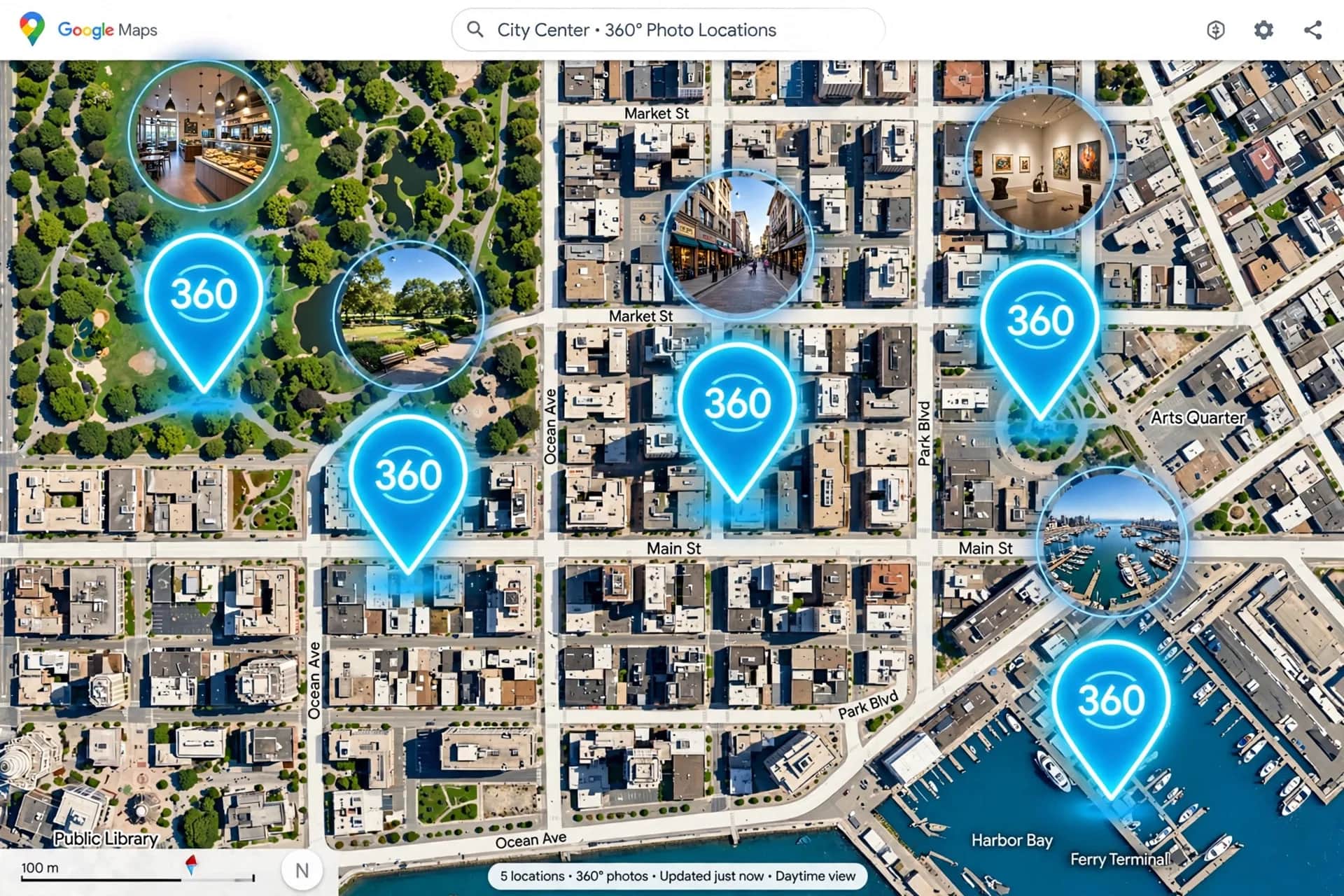
When guests find your homestay or café on Google Maps, they see regular photos uploaded by others. Few know: you can publish your own 360 photos of your venue on Maps — letting guests "stand inside" your space right from search results. How to do it, and the key distinction: Maps 360 photos vs a full 360 tour on your website.
Maps 360 photos vs a full tour
| 360 photos on Google Maps | 360 tour on your website | |
|---|---|---|
| Where viewed | Inside Google Maps, tied to the place | On your website/fanpage |
| Navigation | Google auto-connects nearby photos | You design the flow and labels |
| Info | No prices, CTAs, custom descriptions | Prices, Zalo buttons, full descriptions |
| Branding | Google's interface | Your interface |
Bottom line: Maps 360 photos are a new-customer magnet (people searching on Google); the website tour is the closer (full info for decisions). Do both — they complement, never replace. Full tours explained in what is a 360 tour.
Photo requirements for Maps
- Standard 360 panorama (2:1 ratio — see why 360 photos must be 2:1).
- GPS location data embedded — Google needs to know where the photo was taken to attach it to the right place.
- Real, unmanipulated spaces (Google has authenticity rules).
Publishing: 3 routes
1. Via the Google Maps app (simplest). Open Google Maps → your venue's place page → add photos → pick 360 photos from your library. They go through review, then appear in the place's photo section.
2. Via Street View Studio (for many photos). Google's desktop web tool for bulk 360 uploads: preview, geotag, and connect photos into a walkable sequence. Best when you have many angles and want ordering control. Note: connections between photos can take several days to appear fully.
3. Via your tour builder. If you hired a 360 tour service, ask whether they support publishing 360 photos to Maps — many include it in the package.
Note: Google's standalone Street View app is discontinued — don't follow outdated guides telling you to download it.
Tips to make Maps photos work
- Publish your best shots first: lobby, best views, model rooms — these surface at the top of the place's photos.
- Attach to the right place: double-check photos land on your venue's Google Business page, not the neighbor's.
- Update as the venue changes: renovations and new interiors mean new photos — outdated ones disappoint on arrival.
- Link to the full tour: in the place description or posts, link to the complete 360 tour on your website for details and contact.
Have 360 photos but unsure how to publish them on Maps? Send them via Zalo — I'll check technical compliance and walk you through publishing step by step, free.
💬 Get help publishing 360 photos on Maps
Read next: How to embed a 360 tour on your website · Sharing your 360 tour via Zalo and QR codes