 Virtual tours for remarkable stays
StayPano · Insights & guides
How to embed a 360 tour on your website and fanpage
How to embed a 360 tour on your website via iframe or link, mobile display tips, and the right way to share a tour on your Facebook fanpage.
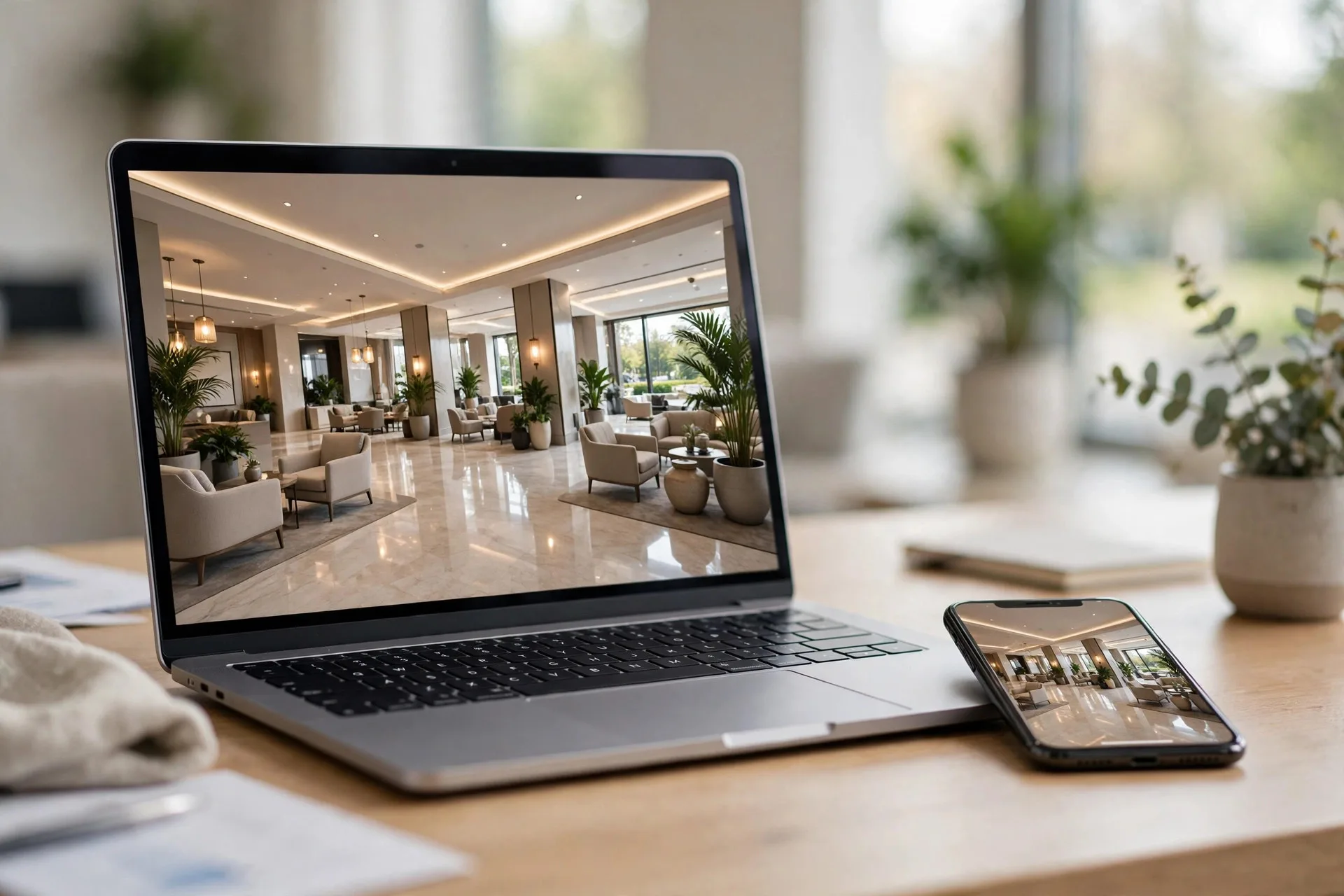
Having a 360 tour but only sending its link through messages is a waste — the tour belongs where guests find it on their own: your property's website and fanpage. This guide covers two ways to put a tour on your website, tips for clean mobile display, and the right way to share it on a fanpage (since Facebook doesn't allow direct embeds).
Two ways to put a tour on your website
Option 1: iframe embed code. You paste a snippet into the page and the tour appears right inside the article — guests drag and spin in 360° without leaving. This keeps visitors on your site longer, and suits the homepage or individual room-category pages. As covered in the hotel 360 tour guide, each room-category page should embed exactly that category's scene group rather than the whole long tour.
Option 2: tour link opening a new tab. Place a "View 360 tour" button on the page; clicking opens the tour in its own tab. This is the lightest option for your site — zero impact on page load speed — and the easiest: just paste the link. Good for short posts, news pages, or when you don't want to touch website code.
Which to choose? If the website is your main booking channel, use iframes on key pages (homepage, room-category pages) and links everywhere else. If you just need quick sharing, the link is enough.
Embedding with an iframe, step by step
Once the production process is complete, your tour provider hands you an embed snippet — usually shaped like <iframe src="..."></iframe>. Four steps to get it on your site:
Step 1: get the right snippet for each page. If the tour has multiple scene groups (e.g. per room category), each has its own code — ask the provider for the correct one per page instead of embedding the whole long tour on a page about a single room type.
Step 2: paste it in the editor's HTML mode. Open the target page in your site admin, switch to HTML editing mode (or a "Custom HTML" block in WordPress), and paste the snippet where you want the tour to appear. Don't paste in visual mode — the code will show up as text instead of a tour.
Step 3: size the frame. Set width to 100% and height around 500–600px on desktop (on phones the frame shrinks with the screen width). Too short and guests can't spin comfortably; too tall and it pushes content below out of view.
Step 4: check the display. Open the page on both desktop and phone: does the tour load, does dragging feel smooth, do the in-tour buttons work? Ask someone else to open it on their phone — your own device may have cached it and look faster than reality.
Display tips
The three most common failure points:
Test thoroughly on mobile. Most guests view tours on phones. Open the page on 4G (not just wifi) and see how long the tour takes to load and whether info-point text is readable. If it's too slow, ask the tour provider to optimize image sizes.
The embed frame must have a real size from the start. Don't place the tour inside a hidden tab, an unopened popup, or a collapsed accordion — many tour viewers measure the frame at startup, and a hidden frame renders blank or distorted. The right way: the frame always has real dimensions; if you want a loading effect, overlay a "loading" layer and remove it once the tour is ready.
Put the tour where guests can see it. Top of the room-category page, right under the photo album — as covered in still photos vs 360 tours, photos hook guests and the tour lets them verify. Bury it at the bottom of the page and few will scroll that far.
What about the fanpage?
Straight talk: Facebook doesn't support direct iframe embeds in posts. There's no way to make the tour appear inside a fanpage post the way it does on a website.
The right fanpage workflow has 3 steps:
1. Post the tour link with a thumbnail. Write a short intro ("Take a full 360° look around our villa before you book"), attach your best panorama as the thumbnail, and paste the tour link in the post. A link with a good image gets far more clicks than a bare link.
2. Pin the post to the top. Post options → "Pin to top of page". Visitors see the tour immediately without scrolling.
3. Add the tour link to the page's About section. The fanpage About section accepts website links — add the tour there so guests find it even without reading the pinned post.
And whenever you post new room photos, add one line: "see the full 360° tour via the link in our About section" — repetition is what makes new visitors remember.
Have a tour but unsure where to embed it? Send your website link via Zalo — I'll review the page structure and suggest sensible tour placements, free. No tour yet? Send your 360 photo set for a free quality check first.
💬 Get advice on tour placement
Read next: How to order a 360 tour at StayPano · 360 tours for hotels: must-have angles and views